Overview
JavaScript events are actions or occurrences that happen in the browser, which the browser tells you about so your code can react to them. Events enable interactive experiences by allowing JavaScript to respond to user actions like clicks, keyboard input, mouse movement, form submissions, and page loading. Understanding events is fundamental to creating dynamic web applications that respond to user interactions in real-time.
The event system in JavaScript follows the DOM event model, where events propagate through the document tree in specific phases. Modern event handling uses addEventListener, which provides more flexibility and control than inline event handlers or event handler properties. This documentation covers the most commonly used events, their properties, and best practices for implementing event-driven interactions.
When to Use It
Use JavaScript events whenever you need to respond to user interactions or browser actions. Common scenarios include validating form input before submission, creating interactive navigation menus, implementing drag-and-drop functionality, tracking scroll position for lazy loading, handling keyboard shortcuts, responding to window resize for responsive layouts, detecting when images or resources finish loading, and building single-page applications that update content without page reloads.
Events are essential for modern web development because they enable the interactivity users expect. Without event handling, web pages would be static documents with no ability to respond to user actions. Choose appropriate events based on the interaction you want to capture, and always consider performance implications when attaching many event listeners or listening to high-frequency events like scroll or mousemove.
How It Works
Events in JavaScript follow a propagation model with three phases: capturing phase, target phase, and bubbling phase. When an event occurs on an element, it first travels down from the document root to the target element during the capturing phase. Then it fires on the target element itself during the target phase. Finally, it bubbles back up to the document root during the bubbling phase. Most event listeners respond during the bubbling phase by default.
To handle events, use the addEventListener method on the target element. This method takes the event type as a string, a callback function to execute when the event occurs, and optional configuration options. The callback function receives an event object containing information about the event, including the target element, event type, and methods to control propagation. You can prevent default browser behavior with preventDefault() and stop event propagation with stopPropagation().
Common Event Types
Mouse Events
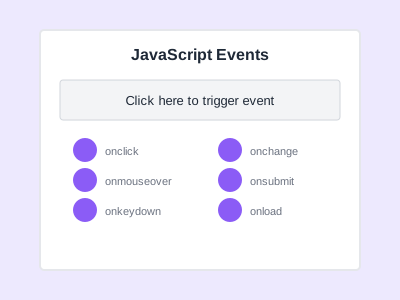
Mouse events track pointer device interactions. The click event fires when a mouse button is pressed and released on an element. The dblclick event fires on double-click. The mousedown and mouseup events fire when a mouse button is pressed or released. The mousemove event fires continuously as the mouse moves over an element. The mouseenter and mouseleave events fire when the pointer enters or leaves an element and do not bubble. The mouseover and mouseout events are similar but do bubble, which can cause issues with nested elements.
Keyboard Events
Keyboard events capture user input from the keyboard. The keydown event fires when a key is pressed down. The keyup event fires when a key is released. The keypress event is deprecated and should not be used in new code. Use keydown or keyup instead. The event object provides key and code properties to identify which key was pressed. The key property gives the character value, while code provides the physical key identifier regardless of keyboard layout.
Form Events
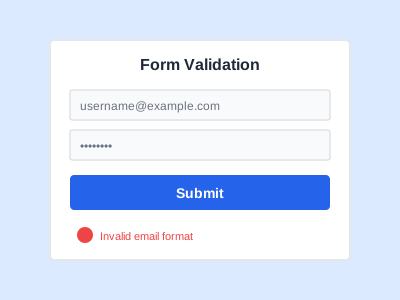
Form events handle user interaction with form elements. The submit event fires when a form is submitted, either by clicking a submit button or pressing Enter in a text field. The change event fires when the value of an input, select, or textarea element changes and the element loses focus. The input event fires immediately whenever the value changes. The focus event fires when an element receives focus, and blur fires when it loses focus. Use focusin and focusout for bubbling versions of focus and blur.
Document and Window Events
Document and window events track page lifecycle and browser actions. The DOMContentLoaded event fires when the HTML document has been completely parsed and the DOM tree is built, without waiting for stylesheets, images, or subframes to finish loading. The load event fires when the entire page and all resources have finished loading. The resize event fires when the browser window is resized. The scroll event fires when the document or an element is scrolled.
Example Usage
Basic Event Listener
const button = document.querySelector('.submit-btn');

button.addEventListener('click', function(event) {
    console.log('Button clicked!');
    console.log('Event type:', event.type);
    console.log('Target element:', event.target);
});
Preventing Default Behavior
const form = document.querySelector('form');

form.addEventListener('submit', function(event) {
    event.preventDefault();

    const formData = new FormData(event.target);
    console.log('Form data:', Object.fromEntries(formData));
});
Event Delegation
const list = document.querySelector('ul');

list.addEventListener('click', function(event) {
    if (event.target.tagName === 'LI') {
        console.log('List item clicked:', event.target.textContent);
    }
});
Removing Event Listeners
function handleClick(event) {
    console.log('Clicked!');
}

const element = document.querySelector('.button');
element.addEventListener('click', handleClick);

// Later, remove the listener
element.removeEventListener('click', handleClick);
Common Pitfalls
Using Anonymous Functions When You Need to Remove Listeners
Anonymous functions cannot be removed with removeEventListener because you need a reference to the exact same function. Always use named functions or store references to arrow functions in variables if you need to remove listeners later.
Forgetting to Prevent Default on Form Submissions
Form submit events cause page reloads by default. If you are handling submission with JavaScript, always call event.preventDefault() to stop the browser from submitting the form and reloading the page.
Not Considering Event Bubbling
Events bubble up through parent elements unless stopped with stopPropagation(). This can cause handlers on parent elements to fire unexpectedly when clicking child elements. Use event delegation intentionally or check event.target to ensure you are handling the correct element.
Attaching Too Many Event Listeners
Attaching individual listeners to many elements creates memory overhead and performance issues. Use event delegation by attaching a single listener to a parent element and checking event.target to determine which child was interacted with.
Best Practices
Use Event Delegation for Dynamic Content
When working with lists or dynamic content where elements are added and removed, attach event listeners to a parent container rather than individual items. This reduces memory usage and ensures new elements automatically have event handling without explicitly adding listeners.
Debounce High-Frequency Events
Events like scroll, resize, and mousemove fire many times per second. Implement debouncing or throttling to limit how often your event handler executes, improving performance and preventing unnecessary calculations.
Clean Up Event Listeners
Remove event listeners when elements are removed from the DOM or when they are no longer needed. This prevents memory leaks, especially in single-page applications where components are frequently created and destroyed.
Use Passive Event Listeners for Scroll Events
Mark scroll and touch event listeners as passive when you know you will not call preventDefault(). This tells the browser it can optimize scrolling performance because it knows you will not prevent the default scroll behavior.
Conclusion
JavaScript events are the foundation of interactive web applications. Understanding event types, propagation, and handling techniques enables you to create responsive user experiences. Use addEventListener for attaching handlers, leverage event delegation for dynamic content, prevent default behaviors when needed, and follow best practices to avoid common pitfalls. Proper event handling creates intuitive, performant applications that respond naturally to user interactions.