Introduction
Debugging is an essential skill for every JavaScript developer. No matter how experienced you become, bugs are inevitable, and knowing how to identify and fix them efficiently separates productive developers from frustrated ones. Modern browsers provide powerful developer tools that allow you to inspect code execution, examine variable values, set breakpoints, and trace program flow. Understanding these tools and debugging techniques enables you to solve problems quickly, understand how code behaves, and write better code by learning from mistakes.
This tutorial will teach you systematic approaches to debugging JavaScript, from simple console.log statements to advanced breakpoint debugging. You will learn how to use browser developer tools effectively, interpret error messages, trace execution flow, and identify common bug patterns. These skills will make you more confident and efficient in your development work.
Who This Guide Is For
This guide is designed for JavaScript developers who want to improve their debugging skills and work more efficiently. If you have spent hours trying to find bugs without a systematic approach, or if you rely solely on console.log for debugging, this tutorial will teach you more effective methods. Debugging skills are crucial for all developers, from beginners learning the basics to experienced programmers tackling complex issues.
Prerequisites
Before starting, you should have:
- Basic understanding of JavaScript syntax and concepts
- Familiarity with browser developer tools
- Knowledge of how to open the browser console
- Understanding of JavaScript error types
- Experience writing JavaScript code that you have needed to debug
Step-by-Step Instructions
Step 1: Use Console Methods Effectively
Beyond console.log, use other console methods for better debugging output.
console.log('Simple message');
console.error('Error message in red');
console.warn('Warning message in yellow');
console.table([{name: 'John', age: 30}, {name: 'Jane', age: 25}]);
console.group('Group Label');
console.log('Message 1');
console.log('Message 2');
console.groupEnd();
Step 2: Set Breakpoints in Browser DevTools
Open DevTools, navigate to the Sources tab, click line numbers to set breakpoints where execution will pause.
function calculateTotal(items) {
    let total = 0;
    for (let item of items) {
        total += item.price;  // Set breakpoint here
    }
    return total;
}
Step 3: Use the Debugger Statement
Insert the debugger keyword to programmatically pause execution.
function processData(data) {
    debugger;  // Execution pauses here when DevTools is open
    const processed = data.map(item => item * 2);
    return processed;
}
Step 4: Inspect Variable Values
When paused at a breakpoint, hover over variables to see their values or check the Scope panel.
function complexCalculation(a, b) {
    const intermediate = a * 2;
    const result = intermediate + b;  // Breakpoint here to inspect values
    return result;
}
Step 5: Step Through Code Execution
Use step controls to execute code line by line: Step Over, Step Into, Step Out, and Continue.
function mainFunction() {
    const data = getData();
    const processed = processData(data);  // Step Into to enter this function
    const result = calculate(processed);  // Step Over to skip this function
    return result;
}
Step 6: Use Conditional Breakpoints
Right-click a breakpoint to add conditions that determine when execution pauses.
for (let i = 0; i < 1000; i++) {
    const value = process(i);  // Set conditional breakpoint: i > 500
}
Common Mistakes and How to Avoid Them
Leaving Console Statements in Production Code
Console statements create performance overhead and can expose sensitive information. Remove or comment them out before deploying code, or use build tools to automatically strip them from production builds.
Not Reading Error Messages Carefully
Error messages provide valuable information about what went wrong and where. Read the entire error message, including the stack trace, which shows the sequence of function calls that led to the error. The stack trace often points directly to the problem.
Changing Too Much Code at Once
When debugging, make small incremental changes and test after each one. Changing multiple things simultaneously makes it impossible to know which change fixed or broke functionality. Adopt a systematic approach: hypothesize, change one thing, test, and repeat.
Not Understanding Asynchronous Behavior
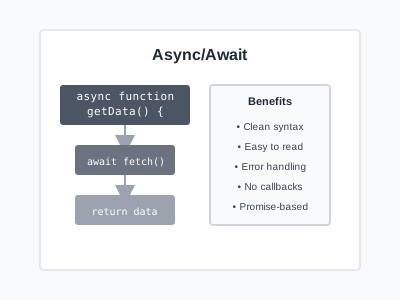
Many JavaScript bugs relate to asynchronous code executing in unexpected order. Use async/await debugging, check promise states, and understand the event loop. Breakpoints help visualize the actual execution order versus your expectations.
Ignoring Browser Compatibility Issues
Code that works in one browser might fail in another. Test across different browsers during development, not just before deployment. Browser developer tools sometimes show different errors for the same code, providing additional debugging clues.
Practical Example or Use Case
Consider debugging a shopping cart where the total price calculates incorrectly. Set a breakpoint in the calculateTotal function. Step through the loop that adds item prices. Inspect the items array and notice some items have price as a string instead of a number. The bug is string concatenation instead of addition. Fix it by converting strings to numbers with parseFloat or Number. Add validation to ensure prices are always numbers. Test with various scenarios to confirm the fix. This systematic approach identifies the root cause rather than treating symptoms.
Summary
Effective debugging requires systematic approaches and proper tools. Use console methods for quick inspection, set breakpoints to pause execution at critical points, step through code to understand flow, inspect variables to verify values, and use conditional breakpoints for complex scenarios. Read error messages carefully, make incremental changes, understand asynchronous behavior, and test across browsers. These techniques transform debugging from frustrating trial-and-error into methodical problem-solving.