Introduction
CSS Flexbox is a powerful layout module that provides an efficient way to arrange, align, and distribute space among items in a container, even when their size is unknown or dynamic. Before Flexbox, creating flexible layouts required complex combinations of floats, positioning, and table displays, often resulting in fragile and difficult-to-maintain code. Flexbox solves these problems by offering a more intuitive and robust approach to layout design.
This tutorial will guide you through the fundamentals of Flexbox, from basic concepts to practical implementation. You will learn how to control the direction, alignment, and spacing of elements within a flex container, enabling you to build responsive layouts that adapt gracefully to different screen sizes without extensive media queries.
Who This Guide Is For
This tutorial is intended for web developers who have basic knowledge of HTML and CSS but want to improve their layout skills using modern CSS techniques. If you have struggled with traditional layout methods like floats or positioning, or if you want to create responsive designs more efficiently, this guide will provide the knowledge you need.
Whether you are building navigation menus, card layouts, or complex page structures, understanding Flexbox will significantly improve your ability to create flexible and maintainable layouts.
Prerequisites
Before starting, you should have:
- Solid understanding of HTML structure and CSS selectors
- Basic knowledge of the box model including padding, margin, and border
- Familiarity with block and inline display types
- Understanding of how CSS cascades and specificity works
- A code editor and modern web browser for testing
Step-by-Step Instructions
Step 1: Create a Flex Container
To use Flexbox, you must first establish a flex container by setting the display property to flex. This enables flex context for all direct children of that container.
.container {
    display: flex;
}
Once an element becomes a flex container, its direct children automatically become flex items. These items can then be controlled using various flex properties to achieve the desired layout.
Step 2: Control Flex Direction
The flex-direction property determines the main axis along which flex items are laid out. By default, items are arranged horizontally in a row, but you can change this to vertical or even reverse the order.
.container {
    display: flex;
    flex-direction: row;
}

.container-column {
    display: flex;
    flex-direction: column;
}

.container-row-reverse {
    display: flex;
    flex-direction: row-reverse;
}
Understanding flex direction is crucial because many other Flexbox properties work relative to the main axis. When flex-direction is row, the main axis runs horizontally, and when it is column, the main axis runs vertically.
Step 3: Align Items Along the Main Axis
The justify-content property controls how flex items are distributed along the main axis. This is particularly useful for creating spacing between items or centering content.
.container {
    display: flex;
    justify-content: flex-start;
}

.container-center {
    display: flex;
    justify-content: center;
}

.container-space-between {
    display: flex;
    justify-content: space-between;
}

.container-space-around {
    display: flex;
    justify-content: space-around;
}
The space-between value places equal space between items with no space at the edges, while space-around adds equal space around each item, resulting in half-size spaces at the edges.
Step 4: Align Items Along the Cross Axis
The align-items property controls alignment along the cross axis, which is perpendicular to the main axis. This determines vertical alignment when flex-direction is row, or horizontal alignment when it is column.
.container {
    display: flex;
    align-items: stretch;
    height: 300px;
}

.container-center {
    display: flex;
    align-items: center;
    height: 300px;
}

.container-start {
    display: flex;
    align-items: flex-start;
    height: 300px;
}
The default value stretch makes items fill the container along the cross axis, which is often desirable for creating equal-height columns.
Step 5: Control Individual Item Flexibility
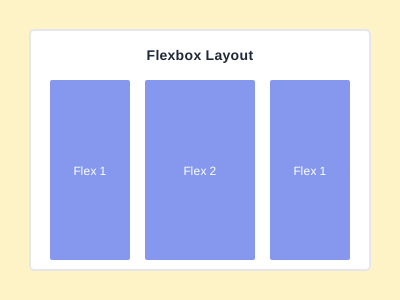
The flex property on individual flex items controls how they grow and shrink to fill available space. This is where Flexbox truly shines in creating responsive layouts.
.item {
    flex: 1;
}

.item-grow {
    flex: 2;
}

.item-fixed {
    flex: 0 0 200px;
}
The flex property is shorthand for flex-grow, flex-shrink, and flex-basis. A value of 1 means the item can grow to fill available space and shrink if necessary. The third example creates an item with a fixed width of 200 pixels that will not grow or shrink.
Step 6: Handle Wrapping
By default, flex items try to fit on one line. The flex-wrap property allows items to wrap onto multiple lines when there is insufficient space.
.container {
    display: flex;
    flex-wrap: wrap;
}

.container-nowrap {
    display: flex;
    flex-wrap: nowrap;
}
When items wrap, you can use align-content to control how multiple lines are distributed along the cross axis, similar to how justify-content works for the main axis.
Common Mistakes and How to Avoid Them
Forgetting to Set Display Flex
Flex properties only work on flex items within a flex container. If you apply flex properties to elements but forget to set display: flex on their parent, the properties will have no effect. Always ensure the parent container has display: flex or display: inline-flex.
Confusing Main Axis and Cross Axis
The main axis changes depending on flex-direction. When the direction is row, justify-content controls horizontal spacing and align-items controls vertical alignment. When the direction is column, these are reversed. Keep the current flex-direction in mind when applying alignment properties.
Overusing Flex for Simple Layouts
While Flexbox is powerful, it is not always the best choice. For simple single-dimension layouts, regular block or inline-block elements might be simpler. For two-dimensional grid layouts, CSS Grid is often more appropriate. Use Flexbox when you need flexible alignment and spacing in one dimension.
Not Testing with Various Content Sizes
Flexbox layouts can behave unexpectedly when content varies significantly in size. Test your layouts with long text, short text, and different numbers of items to ensure they remain functional and visually appealing in all scenarios.
Practical Example or Use Case
Consider building a product card grid for an e-commerce website. Each card contains an image, product name, description, price, and button. Using Flexbox, you can create a layout where cards automatically wrap to multiple rows on smaller screens while maintaining consistent sizing and alignment.
The flex container uses flex-wrap: wrap and justify-content: space-between to distribute cards evenly. Each card is a flex container itself, using flex-direction: column to stack its contents vertically. The description section uses flex: 1 to fill available space, pushing the price and button to the bottom regardless of description length.
This approach creates a responsive layout that works across devices without complex calculations or numerous media queries. Cards automatically reflow as the viewport changes, and content within each card maintains proper alignment even when product names and descriptions vary in length.
Summary
CSS Flexbox provides a powerful and intuitive way to create flexible layouts that adapt to different screen sizes and content variations. By understanding flex containers and flex items, along with properties that control direction, alignment, and flexibility, you can build sophisticated layouts with relatively simple code.
Start by creating a flex container with display: flex, then use flex-direction to establish your main axis. Apply justify-content and align-items to control spacing and alignment, and use the flex property on individual items to determine how they grow and shrink. Remember that Flexbox works in one dimension at a time, making it ideal for navigation menus, card layouts, and component arrangements.
As you practice with Flexbox, you will develop an intuition for when to apply each property and how to combine them effectively. The flexibility and power of this layout module make it an essential skill for modern web development, enabling you to create responsive designs that work beautifully across all devices.