Introduction
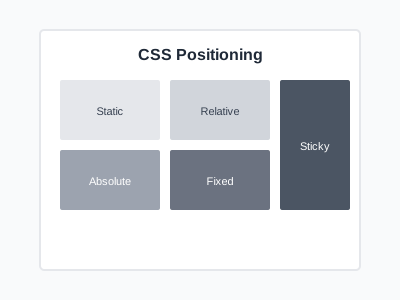
CSS positioning is a fundamental concept that controls where elements appear on a web page. Understanding positioning allows you to create complex layouts, position elements precisely, create overlays, and build sophisticated user interfaces. The position property in CSS has five values, each with distinct behavior and use cases. Mastering these positioning methods enables you to control page layout with precision and create effects that would be impossible with normal document flow alone.
This tutorial explains each positioning method in detail, demonstrating when and how to use static, relative, absolute, fixed, and sticky positioning. You will learn how positioning contexts work, how to use offset properties effectively, and how to avoid common positioning pitfalls that can break your layouts.
Who This Guide Is For
This guide is designed for web developers who understand basic CSS but want to gain deeper control over element placement. If you have struggled with overlapping elements, creating dropdown menus, or understanding why absolute positioning behaves unexpectedly, this tutorial will clarify these concepts. Positioning is essential for developers building complex interfaces, modals, tooltips, or any layout requiring precise element control.
Prerequisites
Before starting, you should have:
- Strong understanding of HTML structure and CSS syntax
- Knowledge of the CSS box model
- Familiarity with block and inline elements
- Understanding of the normal document flow
- Experience with basic CSS layouts
Step-by-Step Instructions
Step 1: Understand Static Positioning
Static is the default positioning for all elements. Elements follow the normal document flow and are not affected by top, right, bottom, or left properties.
.element {
    position: static;
}
You rarely need to explicitly set position: static, but understanding it helps you recognize how other positioning methods differ from the default behavior.
Step 2: Use Relative Positioning
Relative positioning shifts an element from its normal position while maintaining its space in the document flow.
.element {
    position: relative;
    top: 20px;
    left: 30px;
}
This moves the element 20 pixels down and 30 pixels right from where it would normally appear, but other elements behave as if it is still in its original position.
Step 3: Master Absolute Positioning
Absolute positioning removes an element from normal flow and positions it relative to its nearest positioned ancestor.
.container {
    position: relative;
}

.element {
    position: absolute;
    top: 0;
    right: 0;
}
The element positions itself in the top-right corner of the container. If no positioned ancestor exists, it positions relative to the document body.
Step 4: Implement Fixed Positioning
Fixed positioning positions elements relative to the viewport, making them stay in place during scrolling.
.header {
    position: fixed;
    top: 0;
    left: 0;
    width: 100%;
}
This creates a header that remains at the top of the screen as users scroll down the page.
Step 5: Apply Sticky Positioning
Sticky positioning combines relative and fixed behavior, acting relative until a scroll threshold is reached, then becoming fixed.
.sidebar {
    position: sticky;
    top: 20px;
}
The sidebar scrolls normally until it reaches 20 pixels from the top of the viewport, then sticks in place.
Common Mistakes and How to Avoid Them
Forgetting to Set a Positioned Parent
Absolute positioning requires a positioned ancestor to work as expected. If you wonder why your absolutely positioned element appears in the wrong location, check that its container has position: relative, absolute, or fixed. Without a positioned parent, the element positions relative to the document body.
Not Accounting for Fixed Element Height
Fixed headers and footers remove themselves from document flow, which can cause content to hide behind them. Add padding or margin equal to the fixed element's height to the body or main content area to prevent overlap.
Overusing Absolute Positioning
While powerful, absolute positioning should not replace normal layout methods. Overuse creates fragile layouts that break when content changes. Use Flexbox or Grid for primary layout structure and reserve positioning for specific effects like dropdowns, tooltips, or overlays.
Sticky Not Working
Sticky positioning fails when the parent container has overflow: hidden or when there is no room to scroll. Ensure the parent has sufficient height and does not clip overflow for sticky positioning to work correctly.
Practical Example or Use Case
Consider building a blog article page with a sticky table of contents. As users scroll, the table of contents initially scrolls with the page. When it reaches the top of the viewport, it sticks in place, allowing readers to navigate the article while reading. The main content uses normal flow, the table of contents uses sticky positioning, and a fixed back-to-top button appears in the bottom corner. A modal overlay uses absolute positioning within a relatively positioned container to center itself perfectly on screen.
Summary
CSS positioning provides precise control over element placement beyond normal document flow. Use static for default behavior, relative for nudging elements while preserving their space, absolute for positioning within a container, fixed for viewport-relative positioning, and sticky for scroll-based positioning changes. Understanding positioning contexts and when each method applies enables you to create sophisticated layouts and user interface elements confidently.