Introduction
CSS Grid Layout is a powerful two-dimensional layout system that allows you to create complex web page structures with remarkable ease and precision. Unlike Flexbox, which excels at one-dimensional layouts, Grid handles both rows and columns simultaneously, making it ideal for creating complete page layouts, image galleries, and intricate component arrangements. Understanding Grid empowers you to build responsive designs that were previously difficult or impossible with traditional layout methods.
This tutorial will guide you through the essential concepts of CSS Grid, from basic grid containers to advanced techniques like grid areas and auto-placement. You will learn how to define grid templates, position items precisely, and create responsive layouts that adapt beautifully to different screen sizes without complex media queries.
Who This Guide Is For
This guide is designed for web developers who understand basic CSS and want to master modern layout techniques. If you have created layouts using floats or positioning and want to learn a more efficient approach, or if you already know Flexbox and want to expand your layout toolkit, this tutorial will provide the knowledge you need. Grid is essential for developers building dashboard layouts, magazine-style websites, or any interface requiring precise control over both horizontal and vertical positioning.
Prerequisites
Before starting, you should have:
- Strong understanding of HTML structure and CSS selectors
- Knowledge of the CSS box model
- Familiarity with responsive design principles
- Basic understanding of media queries
- Experience with at least one other layout method
Step-by-Step Instructions
Step 1: Create a Grid Container
Transform any element into a grid container by setting its display property to grid. This establishes a grid formatting context for its direct children.
.container {
    display: grid;
    grid-template-columns: 200px 200px 200px;
    grid-template-rows: 100px 100px;
    gap: 20px;
}
This creates a grid with three columns of 200 pixels each and two rows of 100 pixels, with 20 pixels of space between all grid items.
Step 2: Use Flexible Units
The fr unit represents a fraction of available space, allowing grid tracks to grow and shrink responsively.
.container {
    display: grid;
    grid-template-columns: 1fr 2fr 1fr;
    gap: 20px;
}
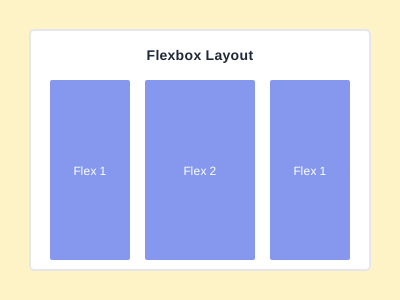
This creates three columns where the middle column takes twice as much space as the side columns, automatically adjusting to container width.
Step 3: Position Items with Grid Lines
Control where items appear in the grid using line-based placement.
.item {
    grid-column: 1 / 3;
    grid-row: 1 / 2;
}
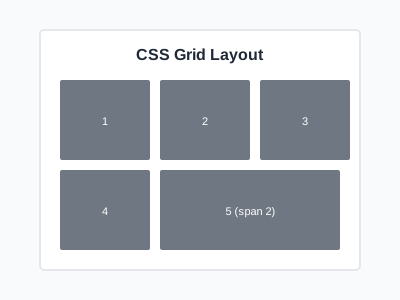
This positions an item to span from column line 1 to 3, occupying two columns in the first row.
Step 4: Create Named Grid Areas
Define and use named areas for more semantic layouts.
.container {
    display: grid;
    grid-template-areas:
        "header header header"
        "sidebar main main"
        "footer footer footer";
    grid-template-columns: 200px 1fr 1fr;
    gap: 20px;
}

.header { grid-area: header; }
.sidebar { grid-area: sidebar; }
.main { grid-area: main; }
.footer { grid-area: footer; }
Step 5: Make Grids Responsive
Use auto-fill and minmax for responsive grids without media queries.
.container {
    display: grid;
    grid-template-columns: repeat(auto-fill, minmax(250px, 1fr));
    gap: 20px;
}
Common Mistakes and How to Avoid Them
Confusing Grid Lines and Grid Tracks
Grid lines are the dividing lines between tracks, not the tracks themselves. When positioning items, remember that line 1 is at the start and lines are numbered from the edges of the grid.
Forgetting to Define Grid Template
Simply setting display: grid without defining columns or rows creates a single-column grid. Always specify your grid structure with grid-template-columns or grid-template-rows.
Overusing Explicit Placement
Grid has powerful auto-placement algorithms. Let Grid handle placement when possible rather than manually positioning every item, which makes maintenance harder.
Practical Example or Use Case
Consider building a dashboard with a header, sidebar navigation, main content area, and footer. Grid makes this straightforward with named areas that clearly define the layout structure. On larger screens, the sidebar appears alongside content. On smaller screens, a media query redefines grid-template-areas to stack everything vertically, maintaining the same HTML structure.
Summary
CSS Grid Layout revolutionizes how we create web page structures by providing precise two-dimensional control. Master grid-template-columns, grid-template-rows, and grid-area to build complex layouts efficiently. Combine Grid with Flexbox for ultimate layout flexibility, using Grid for overall page structure and Flexbox for component internals.