Introduction
Responsive web design ensures your website provides an optimal viewing experience across all devices, from large desktop monitors to small mobile phones. With the proliferation of devices with varying screen sizes, responsive layouts are no longer optional but essential for any modern website. A responsive layout automatically adjusts its content, images, and navigation to fit the screen size, providing users with a seamless experience regardless of how they access your site.
This tutorial will teach you the fundamental techniques for creating responsive layouts, including fluid grids, flexible images, and media queries. You will learn how to design mobile-first, implement breakpoints strategically, and ensure your content remains accessible and readable on all devices.
Who This Guide Is For
This guide is designed for web developers who understand basic HTML and CSS and want to create websites that work well on all devices. If you have built static websites and want to make them responsive, or if you are starting a new project and want to implement responsive design from the beginning, this tutorial provides the knowledge you need. Understanding responsive design is crucial for anyone building websites in today's multi-device world.
Prerequisites
Before starting, you should have:
- Solid understanding of HTML structure and CSS styling
- Knowledge of the CSS box model and basic layout techniques
- Familiarity with CSS units like pixels, percentages, and ems
- Understanding of viewport and how browsers render web pages
- Access to devices or browser tools for testing different screen sizes
Step-by-Step Instructions
Step 1: Set the Viewport Meta Tag
The viewport meta tag tells mobile browsers how to render your page. Without it, mobile devices will display your site at desktop width and scale it down.
<meta name="viewport" content="width=device-width, initial-scale=1.0">This tag ensures your page width matches the device width and sets the initial zoom level to 100 percent.
Step 2: Use Fluid Grids with Percentages
Replace fixed pixel widths with percentage-based widths to create layouts that scale with the viewport.
.container {
    max-width: 1200px;
    width: 90%;
    margin: 0 auto;
}

.column {
    width: 48%;
    float: left;
    margin: 0 1%;
}
Step 3: Make Images Flexible
Ensure images scale appropriately by setting their max-width to 100 percent.
img {
    max-width: 100%;
    height: auto;
    display: block;
}
Step 4: Implement Media Queries
Use media queries to apply different styles at different screen sizes.
@media (max-width: 768px) {
    .column {
        width: 100%;
        float: none;
        margin: 20px 0;
    }
}
Step 5: Design Mobile-First
Start with mobile styles as your base, then add complexity for larger screens using min-width media queries.
.container {
    padding: 10px;
}

@media (min-width: 768px) {
    .container {
        padding: 20px;
    }
}

@media (min-width: 1024px) {
    .container {
        padding: 40px;
    }
}
Common Mistakes and How to Avoid Them
Forgetting the Viewport Meta Tag
Without the viewport meta tag, mobile browsers render your page at desktop width and scale it down, making responsive styles ineffective. Always include this tag in your HTML head section as the first step in creating responsive layouts.
Using Too Many Breakpoints
Having breakpoints for every device size makes maintenance difficult and code bloated. Focus on content-based breakpoints where your design naturally needs to adapt, typically around 768px for tablets and 1024px for desktops.
Fixed Height Values
Setting fixed heights on containers can cause content to overflow or create awkward spacing on different devices. Let content determine height naturally, or use min-height when you need to enforce a minimum size.
Not Testing on Real Devices
Browser developer tools are helpful but do not perfectly replicate real device behavior, especially for touch interactions and performance. Test your responsive layouts on actual phones, tablets, and various browsers to ensure they work correctly.
Practical Example or Use Case
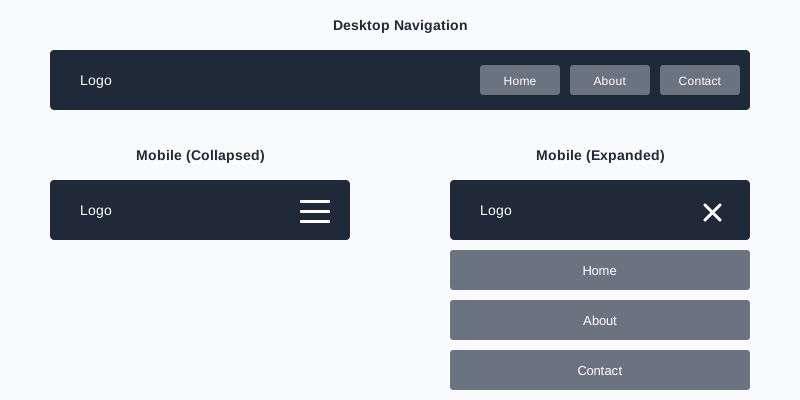
Consider an e-commerce product listing page. On desktop, products display in a four-column grid with detailed information visible. On tablets, the layout adjusts to two columns, maintaining readability while fitting more products per screen. On mobile phones, products stack in a single column with larger touch targets for easy interaction. Images resize appropriately, navigation condenses into a hamburger menu, and font sizes adjust for optimal readability at each breakpoint.
Summary
Building responsive layouts requires thinking beyond fixed dimensions and embracing fluid, adaptable design. Start with the viewport meta tag, use percentage-based widths for fluid grids, make images flexible with max-width, implement strategic media queries, and adopt a mobile-first approach. Test thoroughly across devices to ensure your responsive layouts provide excellent user experiences everywhere.