Introduction
Navigation menus are fundamental components of any website or web application. They provide users with a clear pathway to access different sections and features of your site. In modern web development, creating navigation that works seamlessly across devices of all sizes is not optional but essential. A responsive navigation menu adapts its layout and behavior based on the screen size, ensuring optimal user experience whether your visitor is using a desktop computer, tablet, or smartphone.
This tutorial will guide you through the process of building a fully responsive navigation menu using HTML, CSS, and JavaScript. By the end of this guide, you will understand how to structure navigation markup, style it for different screen sizes, and implement interactive behaviors that enhance usability on mobile devices.
Who This Guide Is For
This tutorial is designed for web developers who have a basic understanding of HTML, CSS, and JavaScript. If you can create simple web pages and have worked with CSS selectors and basic JavaScript event handling, you have the necessary foundation to follow along. The guide is particularly useful for developers who are learning responsive web design principles or looking to improve their skills in creating mobile-friendly interfaces.
Whether you are building a personal portfolio, a business website, or a web application, the techniques covered here will help you create navigation that works well for all users regardless of their device.
Prerequisites
Before starting this tutorial, you should have the following:
- Basic knowledge of HTML structure and semantic elements
- Understanding of CSS including selectors, properties, and responsive design concepts
- Familiarity with JavaScript fundamentals including event listeners and DOM manipulation
- A code editor and a modern web browser for testing
- Understanding of media queries and their role in responsive design
Step-by-Step Instructions
Step 1: Create the HTML Structure
Begin by creating the semantic HTML structure for your navigation menu. Use the <nav>
element to define the navigation section, and organize menu items within an unordered list. This
structure provides both semantic meaning and a solid foundation for styling.
<nav class="main-navigation">
    <div class="nav-container">
        <a href="/" class="logo">Your Logo</a>
        <button class="menu-toggle" aria-label="Toggle menu">
            <span></span>
            <span></span>
            <span></span>
        </button>
        <ul class="nav-menu">
            <li><a href="#home">Home</a></li>
            <li><a href="#about">About</a></li>
            <li><a href="#services">Services</a></li>
            <li><a href="#contact">Contact</a></li>
        </ul>
    </div>
</nav>
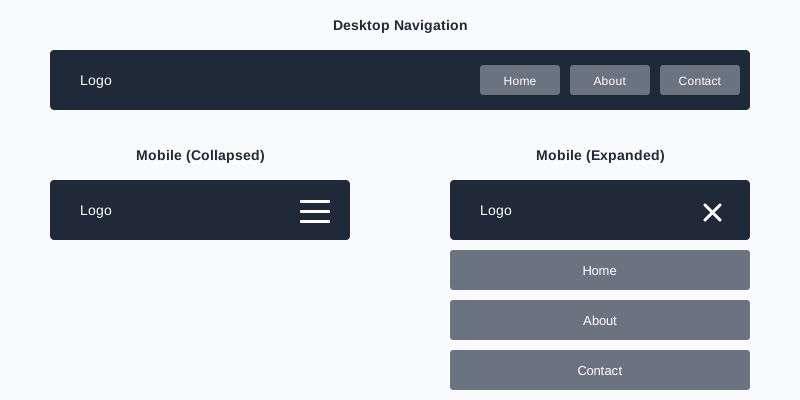
The button with class menu-toggle serves as the hamburger icon that will appear on mobile
devices. The three span elements inside will be styled to create the classic three-line hamburger icon.
Step 2: Style the Desktop Navigation
Start by styling the navigation for desktop screens. Use Flexbox to create a horizontal layout where menu items sit side by side. This approach provides flexibility and makes alignment straightforward.
.main-navigation {
    background-color: #ffffff;
    border-bottom: 1px solid #e5e7eb;
    position: sticky;
    top: 0;
    z-index: 1000;
}

.nav-container {
    max-width: 1200px;
    margin: 0 auto;
    padding: 0 20px;
    display: flex;
    justify-content: space-between;
    align-items: center;
}

.nav-menu {
    display: flex;
    list-style: none;
    gap: 30px;
    margin: 0;
    padding: 0;
}

.nav-menu a {
    color: #4b5563;
    text-decoration: none;
    font-weight: 500;
    padding: 20px 0;
    display: block;
    transition: color 0.3s;
}

.nav-menu a:hover {
    color: #2563eb;
}

.menu-toggle {
    display: none;
}
At this stage, the hamburger button is hidden because it is only needed on mobile devices. The sticky positioning keeps the navigation visible as users scroll down the page.
Step 3: Create the Mobile Menu Toggle Button
Style the hamburger icon that will appear on smaller screens. The three spans are transformed into horizontal lines that will later animate into an X when the menu is open.
.menu-toggle {
    background: none;
    border: none;
    cursor: pointer;
    padding: 8px;
}

.menu-toggle span {
    display: block;
    width: 25px;
    height: 3px;
    background-color: #1f2937;
    margin: 5px 0;
    transition: 0.3s;
}
Step 4: Implement Responsive Behavior with Media Queries
Use a media query to transform the navigation layout on smaller screens. The horizontal menu becomes a vertical dropdown menu that starts hidden and appears when the toggle button is clicked.
@media (max-width: 768px) {
    .menu-toggle {
        display: block;
    }

    .nav-menu {
        position: absolute;
        top: 100%;
        left: 0;
        right: 0;
        flex-direction: column;
        background-color: #ffffff;
        border-top: 1px solid #e5e7eb;
        box-shadow: 0 4px 12px rgba(0, 0, 0, 0.1);
        gap: 0;
        display: none;
    }

    .nav-menu.active {
        display: flex;
    }

    .nav-menu li {
        border-bottom: 1px solid #f3f4f6;
    }

    .nav-menu a {
        padding: 15px 20px;
    }
}
The active class will be toggled by JavaScript to show and hide the mobile menu.
Step 5: Add JavaScript Functionality
Implement the JavaScript code that handles the menu toggle interaction. This script listens for clicks on the hamburger button and toggles the visibility of the menu.
document.addEventListener('DOMContentLoaded', function() {
    const menuToggle = document.querySelector('.menu-toggle');
    const navMenu = document.querySelector('.nav-menu');

    menuToggle.addEventListener('click', function() {
        navMenu.classList.toggle('active');

        const spans = menuToggle.querySelectorAll('span');
        if (navMenu.classList.contains('active')) {
            spans[0].style.transform = 'rotate(45deg) translate(6px, 6px)';
            spans[1].style.opacity = '0';
            spans[2].style.transform = 'rotate(-45deg) translate(6px, -6px)';
        } else {
            spans[0].style.transform = 'none';
            spans[1].style.opacity = '1';
            spans[2].style.transform = 'none';
        }
    });
});
This code also animates the hamburger icon into an X shape when the menu is open, providing visual feedback to users.
Common Mistakes and How to Avoid Them
Forgetting to Set Viewport Meta Tag
One of the most common mistakes is omitting the viewport meta tag in the HTML head section. Without this tag, mobile browsers will render your page at desktop width and scale it down, making your responsive styles ineffective. Always include this tag in your HTML document.
Not Testing on Real Devices
Browser developer tools are helpful for testing responsive designs, but they do not perfectly replicate how your navigation will behave on actual mobile devices. Touch interactions can feel different, and performance may vary. Always test your navigation on real smartphones and tablets before considering it complete.
Using Hover Effects as Primary Interactions on Mobile
Hover states do not translate well to touch devices. If your navigation relies on hover effects to reveal submenus or additional options, mobile users will have difficulty accessing those features. Design mobile navigation with tap interactions in mind, making all options accessible through clicking or tapping.
Creating Menus That Are Too Large for Mobile Screens
Avoid cramming too many navigation items into a mobile menu. If your menu has numerous options, consider organizing them into categories or using a hierarchical structure with expandable sections. A mobile menu that requires excessive scrolling degrades user experience.
Practical Example or Use Case
Consider an e-commerce website that sells various product categories. On desktop, the navigation displays all main categories horizontally across the top of the page. Each category might have a dropdown submenu that appears on hover, showing subcategories.
On mobile devices, the same navigation transforms into a hamburger menu. When tapped, it reveals a vertical list of categories. Subcategories are accessed by tapping on the main category, which expands to show additional options. This approach maintains access to all navigation options while adapting to the constraints of smaller screens.
Another practical application is for a corporate website with multiple sections such as About, Services, Products, Resources, and Contact. The responsive navigation ensures that whether a potential client visits from their office desktop or checks the site on their phone during a commute, they can easily access all information. This seamless experience across devices contributes to better user engagement and can positively impact business outcomes.
Summary
Building responsive navigation menus requires attention to both structure and behavior across different screen sizes. By starting with semantic HTML, progressively enhancing with CSS for visual presentation, and adding JavaScript for interactive functionality, you create navigation that serves all users effectively.
The key principles to remember are to use flexible layout techniques like Flexbox, implement media queries to adjust styles for different breakpoints, hide the hamburger button on desktop while showing it on mobile, and provide clear visual feedback when users interact with the menu toggle. Testing across various devices ensures your implementation works as intended in real-world scenarios.
Responsive navigation is a foundational skill in modern web development. As you build more complex websites, you will refine these techniques and adapt them to different project requirements. The patterns you have learned here provide a solid starting point that you can expand upon as your skills develop and project needs evolve.